Install Artwork Ready
The shop home a tap away. An email when your files are ready. On Android, share a customer's picture from WhatsApp straight into the app.
 Artwork Ready
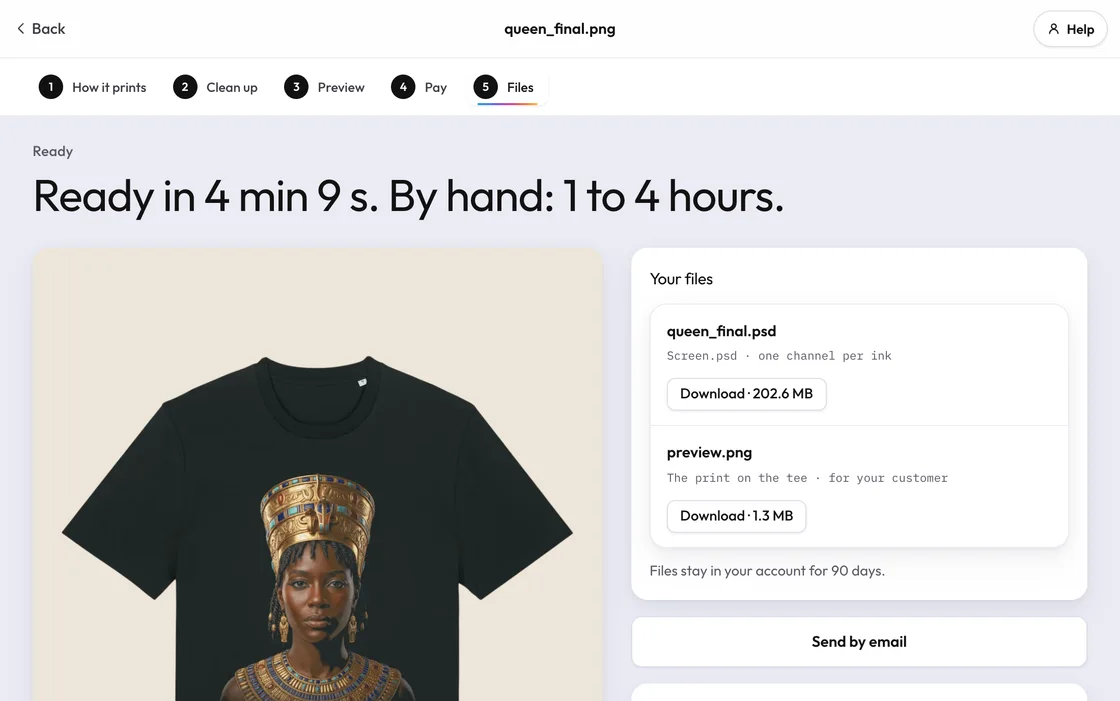
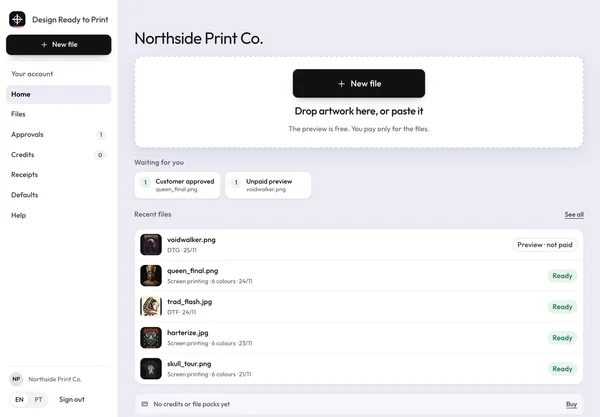
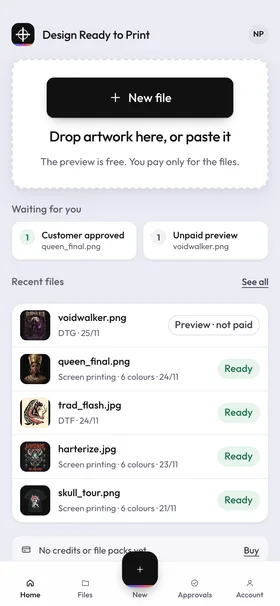
Every device
Came from WhatsApp? Open this page in Safari first. WhatsApp's own view can't install it.
- 1Open artworkreadytoprint.com in Safari.
- 2Tap “•••” next to the address bar.‹ artworkreadytoprint.com
- 3Tap “Share”.Share
- 4Scroll down and tap “Add to Home Screen”.Add to Home Screen
- 5Keep “Open as Web App” on. Tap “Add”.CancelAdd to Home ScreenAddArtwork Readyartworkreadytoprint.comOpen as Web App
Safari's tab layout is set to Bottom or Top? Then Share is on the bar already. Skip step 2.
- 1Open artworkreadytoprint.com in Safari.
- 2Tap “Share”, the square with an arrow up, in the bottom bar.‹›
- 3Scroll down and tap “Add to Home Screen”.Add to Home Screen
- 4Tap “Add” at the top right.CancelAdd to Home ScreenAddArtwork Readyartworkreadytoprint.com
Chrome on iPhone works too. Tap Share in its address bar, then “Add to Home Screen”.
Then sign in once. The app on your iPhone keeps its own sign-in, so you sign in again inside the app, one time.
- 1Open artworkreadytoprint.com in Safari.
- 2Tap “Share” at the top right of Safari. If you see “•••” there instead, tap it, then tap “Share”.artworkreadytoprint.com
- 3Scroll down and tap “Add to Home Screen”.Add to Home Screen
- 4Keep “Open as Web App” on. Tap “Add”.CancelAdd to Home ScreenAddArtwork Readyartworkreadytoprint.comOpen as Web App
Then sign in once. The app keeps its own sign-in, so you sign in again inside the app, one time.
One tap
Chrome, Samsung Internet and Edge show the button on this page.
Then tap “Install” in the box that opens.
By hand in Chrome
- 1Tap ⋮ at the top right.artworkreadytoprint.com
- 2Tap “Install app”. If you see “Add to Home screen” instead, tap that.Install app
- 3Tap “Install” (or “Add”).Install app?artworkreadytoprint.comCancelInstall
By hand in Samsung Internet
- 1Tap the ≡ menu.‹›⌂
- 2Tap “Add page to”.Add page to
- 3Tap “Home screen”.Home screen
Firefox on Android: Tap ⋮, then “Add to Home screen”. There is no one-tap button there.
- 1Open artworkreadytoprint.com in Chrome or Edge.
- 2Click the install icon at the right of the address bar.‹ › ↻ artworkreadytoprint.com
- 3Click “Install”.Install app?artworkreadytoprint.comCancelInstall
Chrome or Edge
- 1Open artworkreadytoprint.com in Chrome or Edge.
- 2Click the install icon at the right of the address bar.‹ › ↻ artworkreadytoprint.com
- 3Click “Install”.Install app?artworkreadytoprint.comCancelInstall
- 4Keep the app in the Dock if you want it there.
Safari (macOS Sonoma 14 or later)
- 1Open artworkreadytoprint.com in Safari.
- 2In the menu bar choose File, then “Add to Dock”.SafariFileEditViewAdd to Dock…
- 3Click “Add”. Or use Share in the toolbar, then “Add to Dock”.
Sign-in: On a Mac the app keeps the Safari sign-in.
Firefox: Use Chrome, Edge or Safari to install. Firefox's own web apps are still experimental.
- 1Open artworkreadytoprint.com in Chrome.
- 2Click the install icon in the address bar.‹ › ↻ artworkreadytoprint.com
- 3Click “Install”.Install app?artworkreadytoprint.comCancelInstall
Open it on your phone
Point your phone's camera at the code. It opens this page there, with the steps for your phone.
Questions
Is it free?
Yes. The app costs nothing. You pay per file, like on the site.
Does it work offline?
No. It needs the internet, like the site.
How much space does it take?
Almost none.
How does it update?
By itself. You do nothing.
Do I sign in again on iPhone?
Yes, once. The app on iPhone keeps its own sign-in.
Will I get notifications?
Later. When they come, the app asks after you install it: files ready, customer approved. On iPhone they only work in the installed app.
How do I remove it?
Like any app: press and hold the icon on a phone or tablet and remove it. On a computer, open the app's menu and choose Uninstall.